Running a rental photo studio gets complicated fast. Bookings come in through Instagram, text, your website, and every one of them needs a manual reply, a door code sent out, someone available to handle it. As the studio gets busier, so do you. At some point most studio owners realize: they've become the bottleneck.
There's a fix, and it doesn't require you to be available at all: turn it into a self-service photo studio. Automated booking, upfront payment, and a unique door code tied to each session means clients can book and walk in while you're at work, out of town, or asleep.
How Brightroom Studio made the switch
Brightroom Studio in Little Rock, Arkansas used to handle every reservation manually: confirming bookings, sending codes by hand, staying available for every client who needed to get in. After I built them a fully automated system connecting their booking page, payment processing, and smart lock, that changed. They've gotten back hours of admin work every week, and people book and walk in while the team is at their other jobs, out of town, or off the clock.
As owner Allison Maxwell put it:
"Mark is AMAZING. We hired him for our website, which turned out to be more involved and complicated than we anticipated. Mark brought expertise and professionalism to every single step. His quality of work is fantastic and he is extremely thorough in his communication. 10/10 recommend."
You can read the full Brightroom Studio case study for a closer look at how the system was built.
What a self-service photo studio looks like
For the customer:
- They visit your booking page and pick an available time slot
- They pay upfront at the time of booking. No invoice, no follow-up.
- They receive a confirmation email with a unique PIN code
- They show up, enter the PIN on the keypad, and walk in
- When their session ends, the PIN expires automatically
For you: Nothing. The whole thing runs without you.
See it in action
The moment a booking confirms, the client gets an automatic email with a PIN tied to their exact session window:
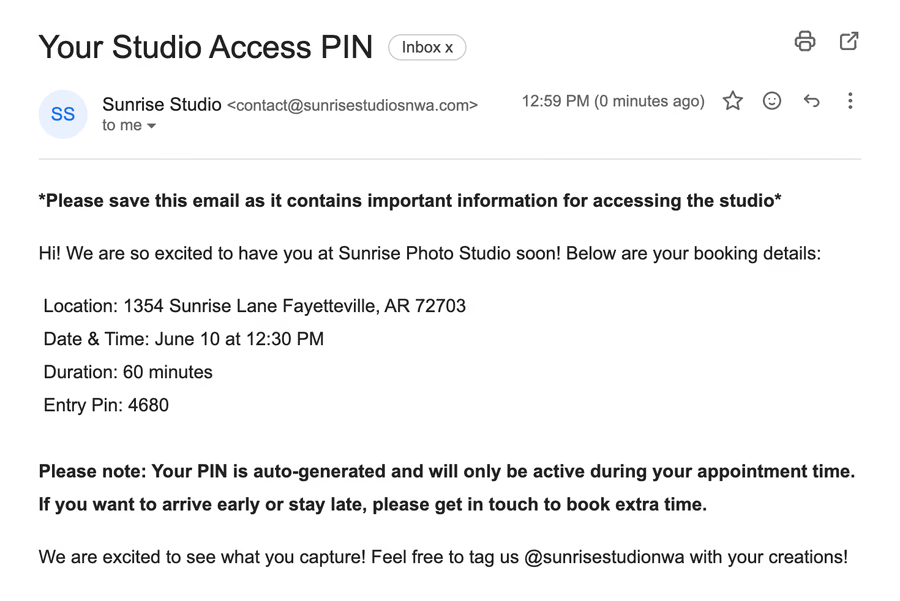
This is what the client sees. Their code, their window, no back-and-forth required.
At the same time, Seam is already working in the background — programming that code onto your lock and scheduling it to expire the moment the session ends:
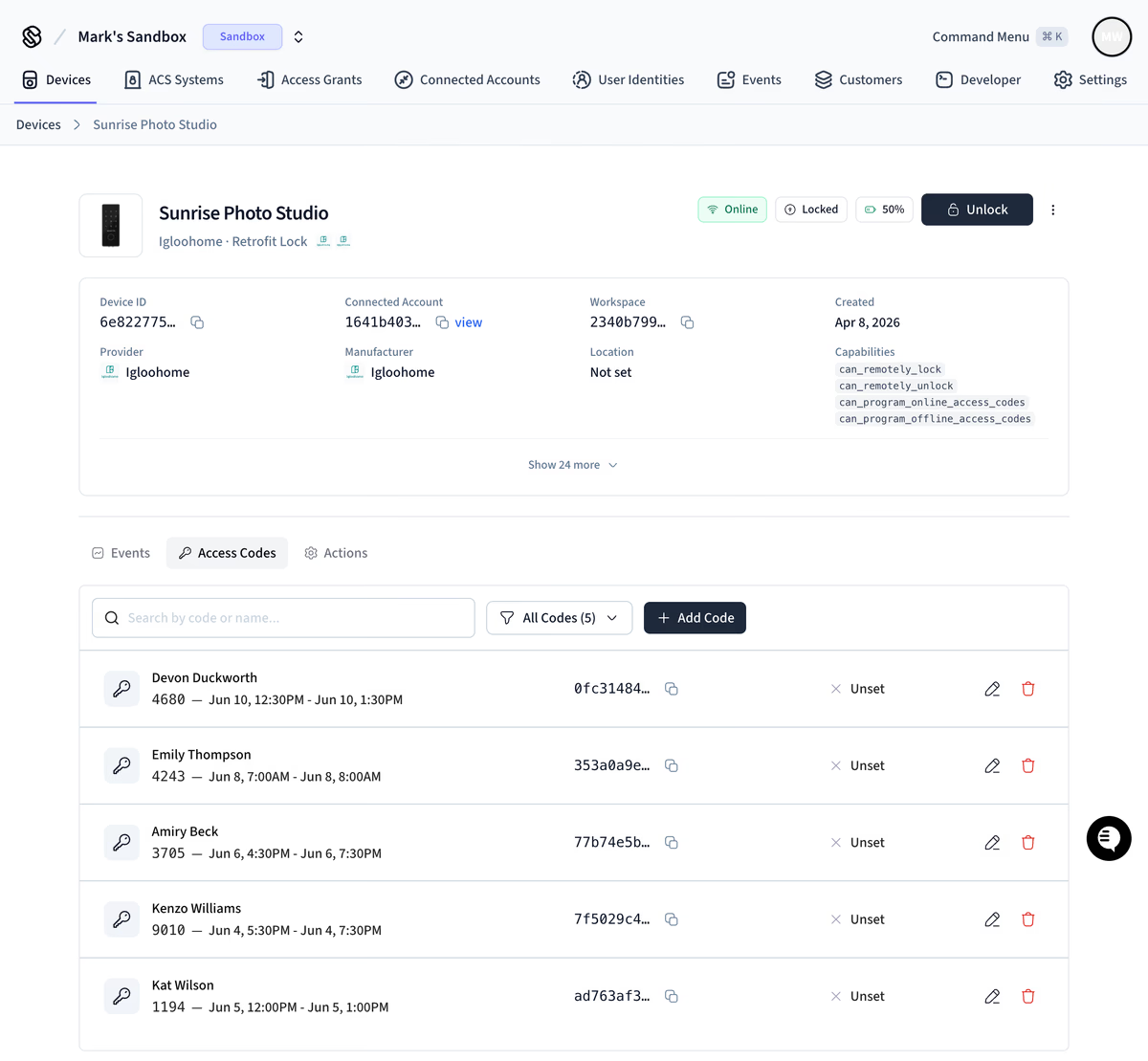
Every active code is visible in Seam, tied to a specific booking window and device.
On top of that, I set up a master Zapier log so you always have a record of every booking, status change, and code that's been issued:
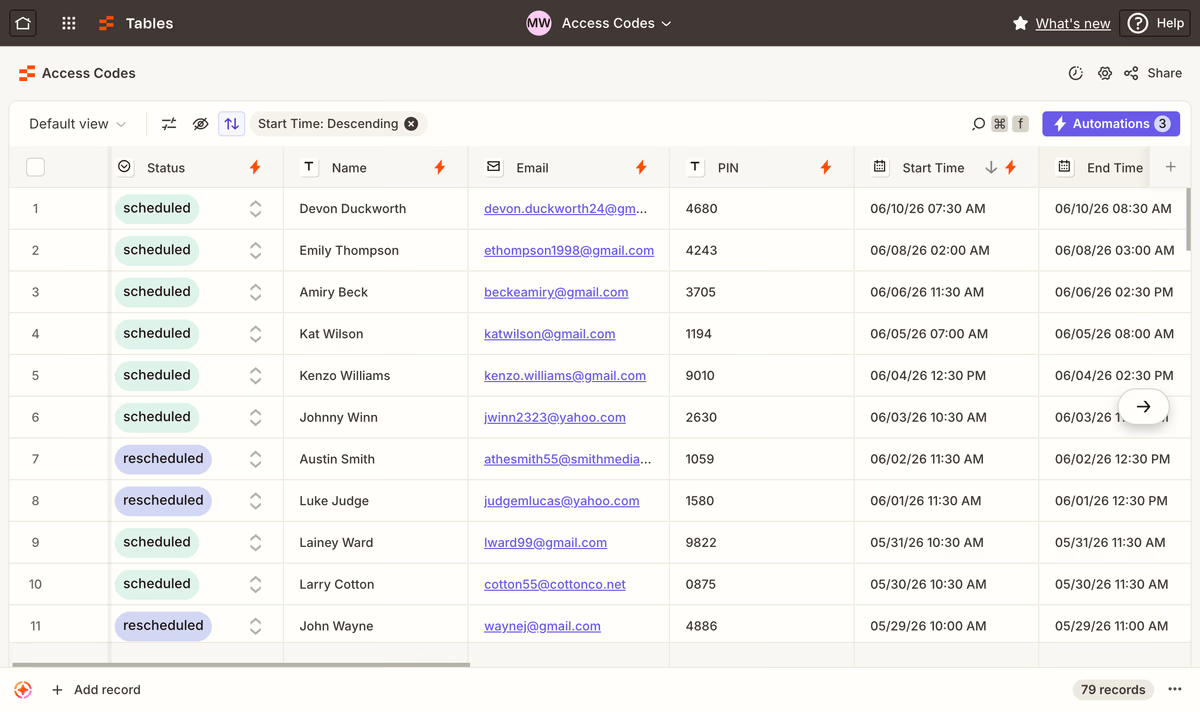
A running log of every booking — useful for monitoring and record-keeping.
What you need
- Acuity Scheduling: handles online booking and payment collection
- Zapier: the automation layer that connects everything
- Seam API: programs and manages access codes on your smart lock
- A compatible smart lock: Schlage, Yale, or Igloohome all work well
Let's walk through each piece.
Step 1: Set up online booking with Acuity Scheduling
Acuity is where your customers start. Create your studio as a bookable service, set your available hours, and configure your pricing.
- Appointment types: create one for each block length you offer (1 hour, 2 hours, half-day, etc.)
- Availability: set bookable hours and buffer time between sessions for turnaround
Customers book directly without contacting you. Acuity handles calendar management, prevents double-booking, and sends confirmations automatically.
Step 2: Collect payment at booking time
Connect a payment processor inside Acuity (Stripe or Square both work) and require payment upfront. The booking isn't confirmed until payment clears. No more chasing invoices or absorbing no-shows who never committed.
Step 3: Generate a unique PIN automatically
When a booking is confirmed and paid, Zapier triggers a workflow that:
- Calls the Seam API to create a new access code on your smart lock
- Sets the code's valid window to match the exact booking time (e.g., 2:00 PM to 4:00 PM)
- Emails the client their unique PIN along with arrival instructions
The PIN expires the moment their session ends. A well-built system typically uses 3-4 Zaps to cover bookings, reschedules, and cancellations.
Step 4: The smart lock does the rest
The client enters their PIN on arrival, the lock confirms it's valid for the current time, and they're in. When the session ends, the code deactivates automatically. No key to return, no code to change, no shared access.
Choosing the right smart lock
Not every smart lock works with the Seam API. The ones that hold up well for studio setups:
- Schlage Encode Plus: solid build quality, excellent reliability, HomeKit compatible
- Yale Assure Lock 2: clean design, strong PIN management, wide availability
- Igloohome Smart Key Box 3: works offline, good for spaces without reliable Wi-Fi
If you already have a lock installed, check the Seam compatibility list before buying anything new.
Common mistakes to avoid
Using the same PIN for everyone. A static code gets shared. You lose track of who's been in your space.
Not handling rescheduled bookings. If your automation only covers cancellations, a rescheduled client's old code stays active. Make sure your Zaps cover the reschedule event.
Skipping the buffer time. Without a gap between sessions, one client's PIN can still be active when the next one arrives. Build in at least 15 to 30 minutes in Acuity.
No fallback contact method. Automation fails occasionally. Include a way to reach you in the confirmation email, just in case.
Is it worth setting up?
If you're handling more than a handful of bookings a week, almost certainly. The system pays for itself in the hours it saves and the bookings it catches while you're asleep, on a shoot, or just not by your phone.
You didn't build this studio to spend your evenings coordinating door codes. This system hands those hours back, and it keeps running whether you're in the building or not.